Registration, schedule & more
You’ll use WebOpus to register for classes, check on financial aid, as well as other secure functions and records.
In this training, learn how to:
- Search for courses
- Access your course schedule
- See your financial aid
Getting started
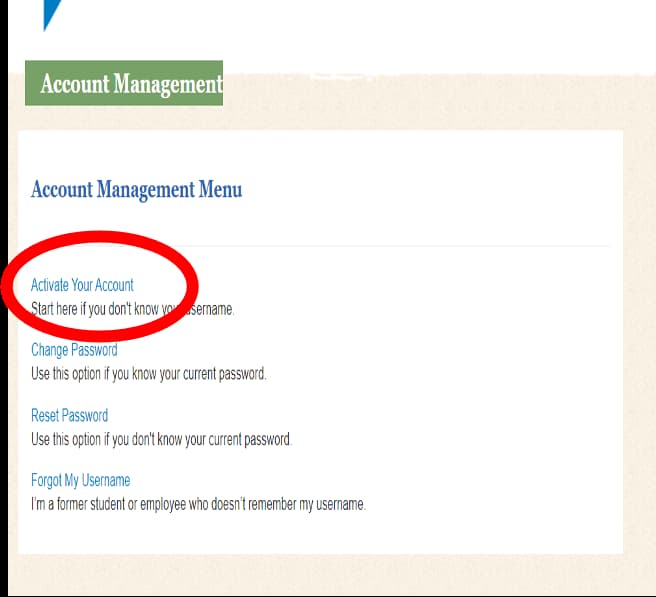
Before you can access WebOPUS you’ll need to Activate your FLC Account.
Activate your FLC account
- Locate your FLC identification number in your portal (click log in as a returning user)
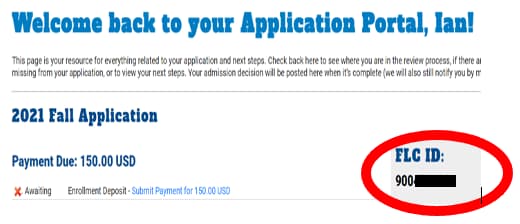
- Go to the Account Management page and use your FLC identification number to activate your FLC account.
Accessing WebOPUS
- From any page on the FLC site, use the Quick Links at the top right of the screen. You’ll find WebOpus in the Faculty & Staff column (right column).
- There is also a link in the very bottom section of each page of the FLC site, under the heading TOOLS.
- And, of course, you can search WebOpus in theFort.
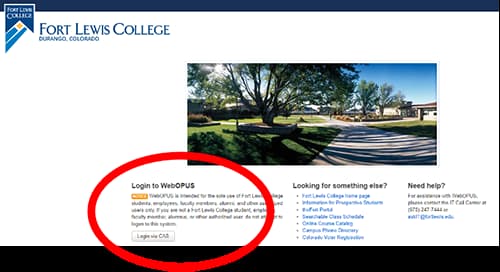
Once you arrive at the WebOpus login page, select "Login via CAS" to use your FLC credentials (the same username and password you use for email and theFort) to get started.
Navigating WebOPUS
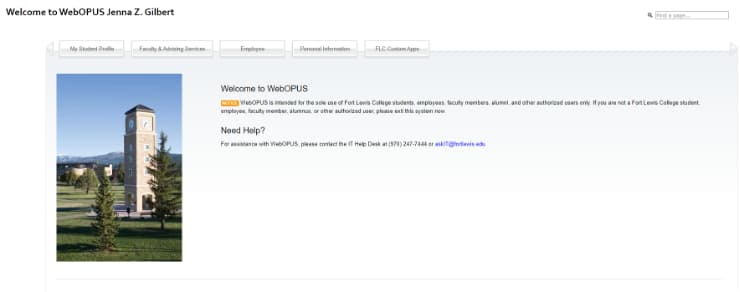
In the main menu, you'll see tabs for the following areas:
- Student profile
- Personal information
Student profile
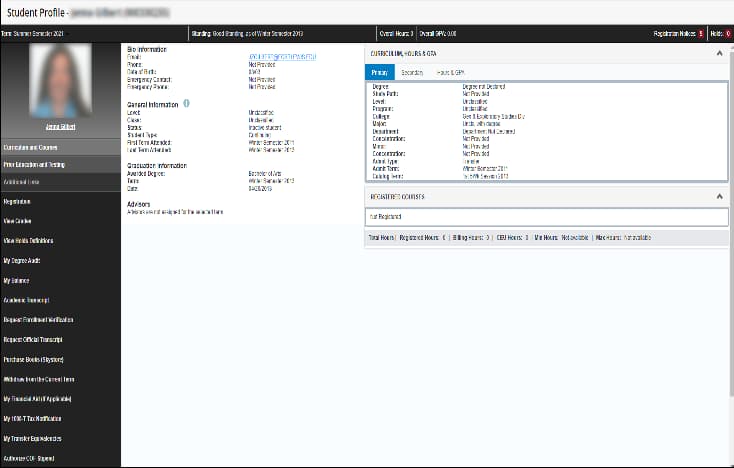
Use the options on the left-hand side of the screen to access information and records, such as grades and financial aid, or to register for classes. The key functions include:
- Registration: access your class schedule, register for classes, purchase your textbooks and more
- View grades: see your grades
- My balance: View your student bill (tuition, fees, etc.)
- Academic transcript: look at your unofficial transcript
- Purchase books: see the books you need for your courses, and order them from the SkyStore
- My financial aid: review your financial aid package
- Apply for on-campus housing/purchase or change meal plan: apply for campus housing, add a commuter or voluntary meal plan, or change your residential meal plan
Personal information
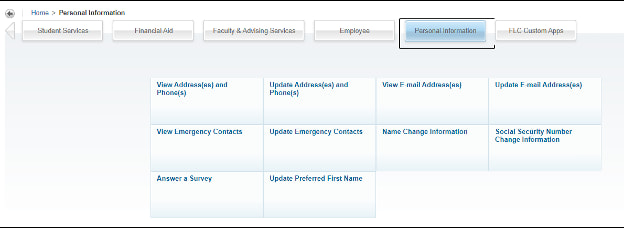
Personal Information is where you can update all of your information including but not limited to emergency contacts, address, phone numbers, email addresses. Click on the section you want to update and change the information.
*Please note: you'll need to update Name Change Information in-person at Skyhawk Station.